Elevation detection
How the AnchorGrid API locates interior elevation regions inside architectural drawing PDFs, and what you can build with the resulting bounding boxes.
Example run
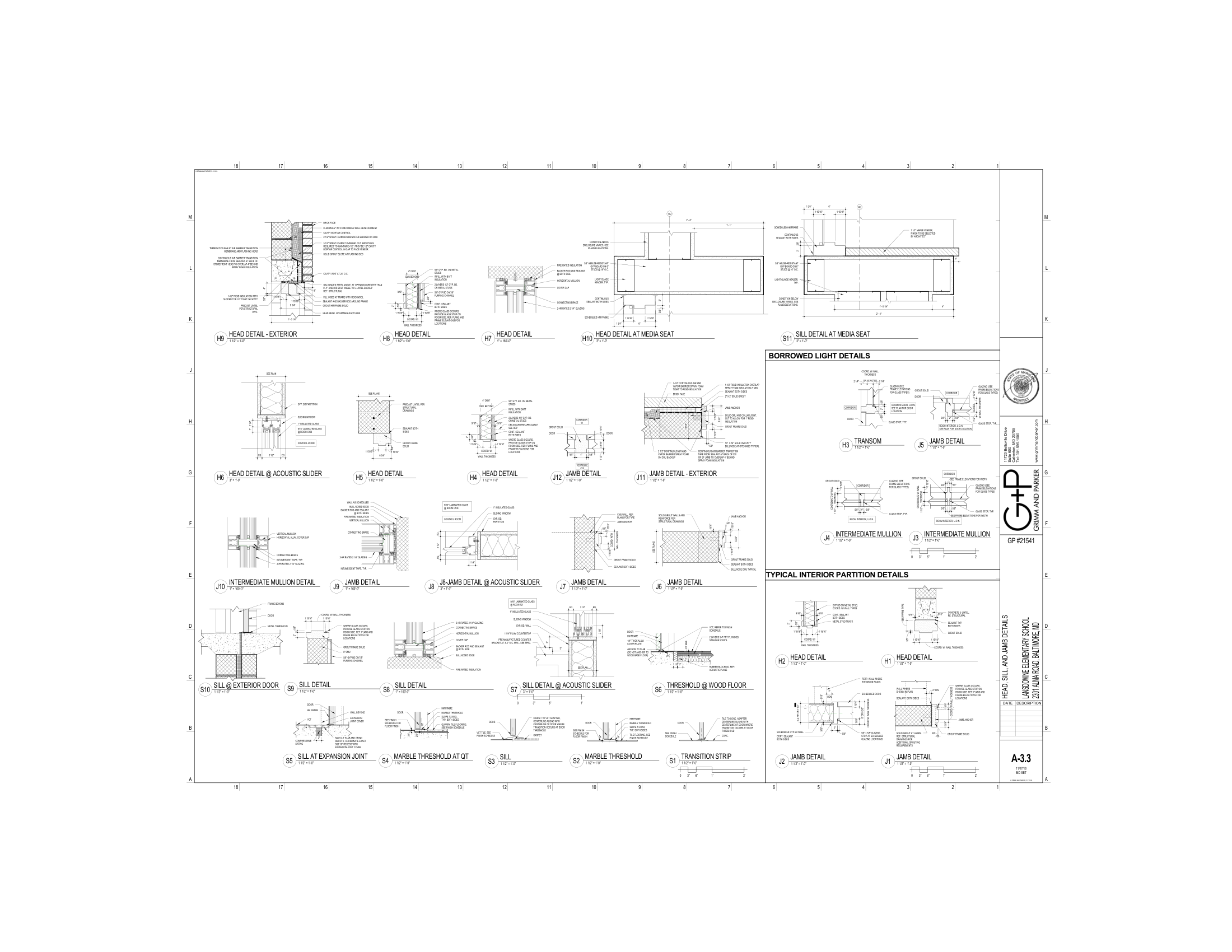
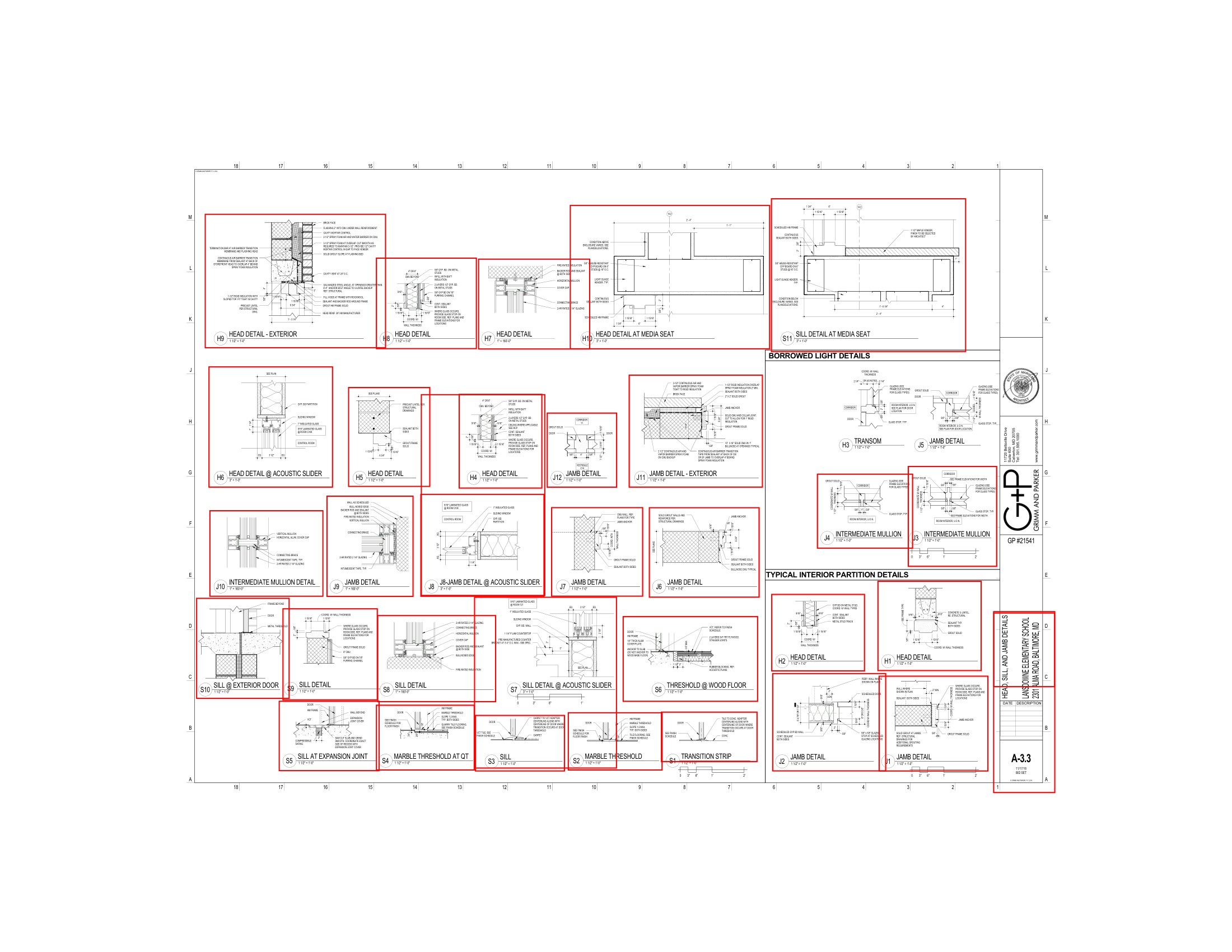
> POST /v1/documents  ·  elevation_drawings.pdf  (1.1 MB)
✓ document_id: a1c3e5f7-9b2d-4e6a-8c0f-1d3b5e7a9c2d  ·  8 pages
> POST /v1/drawings/detection/elevation
✓ job_id: b2d4f6a8-1c3e-4a7b-9c0d-2e4f6a8b0c2d  ·  status: queued
· GET /v1/jobs/b2d4f6a8…  →  processing
· GET /v1/jobs/b2d4f6a8…  →  processing
✓ status: complete  ·  34 elevations detected  ·  8 pages  ·  6240 ms
The basics
An interior elevation is a vertical slice drawing that shows one wall of a room: what you'd see standing in the space looking straight at that wall. Architects use them to communicate finish materials, millwork heights, fixture placement and accessory locations that can't be read from a floor plan alone.
A single sheet in a drawing set can contain 2–6 individual elevation views. Standard document management tools (Procore, ACC) parse the sheet title block; they don't know how many elevations are on the sheet or which room each shows.
POST /v1/drawings/detection/elevation returns a separate bounding box for every elevation region on every page, so downstream tools can address each view on its own instead of treating the whole sheet as one object.The anatomy
Each item in the elevations[] array describes one detected region:
| Field | Example | Meaning |
|---|---|---|
id | "ele_a1b2c3d4e5f6" | Stable identifier: "ele_" + 12 hex characters. Useful for referencing a specific view across jobs. |
page | 2 | 1-based PDF page index. Elevations on the same sheet share the same page number. |
bbox.x1 / y1 | 88.0 / 412.0 | Top-left corner of the bounding box in PDF coordinate space (origin at the bottom-left of the page). |
bbox.x2 / y2 | 312.5 / 652.0 | Bottom-right corner. Subtract x1/y1 to get the width and height in PDF units. |
{
  "id": "ele_a1b2c3d4e5f6",
  "page": 2,
  "bbox": {
    "x1": 88.0,
    "y1": 412.0,
    "x2": 312.5,
    "y2": 652.0
  }
}
Why it matters for APIs
Once you have a bounding box for each elevation, several workflows become mechanical:
Crop exactly the elevation region from the rendered page before sending it to a vision model. That reduces noise and token cost compared with sending the whole sheet.
Group detected elevations by page and spatial proximity to infer which views belong to the same room, without any title-block parsing.
Compare the elevation count per sheet against the drawing index. Sheets with fewer elevations than expected point to missing or incomplete documentation.
The CSI connection
CSI (Construction Specifications Institute) organizes construction work into 50 divisions. Interior elevation drawings often show work from several divisions on a single view:
| Division | Work | On an elevation |
|---|---|---|
Division 06 | Wood, Plastics, Composites | cabinets, millwork |
Division 09 | Finishes | tile, paint, wall coverings |
Division 10 | Specialties | toilet accessories, grab bars, signage |
Division 12 | Furnishings | window treatments, furniture |
Restroom elevations are especially rich in Division 10 content: grab bars, paper towel and soap dispensers, mirrors and toilet accessories all appear on a single view. Detecting the elevation region first, then running spec extraction on the relevant CSI sections, lets you check fixtures against the specifications without reviewing every sheet by hand.
Code example
The example uploads a drawing set, runs elevation detection on every page, checks the job until it's complete, and prints each detected region with its page and bounding box.
import time
import httpx

API_KEY = "<your-api-key>"
BASE    = "https://api.anchorgrid.ai"
HEADERS = {"X-API-Key": API_KEY}

# 1. Upload the PDF
with open("floor-plans.pdf", "rb") as f:
    upload = httpx.post(
        f"{BASE}/v1/documents",
        headers=HEADERS,
        files={"file": ("floor-plans.pdf", f, "application/pdf")},
    )
upload.raise_for_status()
document_id = upload.json()["document_id"]
print(f"Uploaded: {document_id}")

# 2. Submit elevation detection (all pages)
job = httpx.post(
    f"{BASE}/v1/drawings/detection/elevation",
    headers={**HEADERS, "Content-Type": "application/json"},
    json={"document_id": document_id},
)
job.raise_for_status()
job_id   = job.json()["job_id"]
poll_url = BASE + job.json()["poll_url"]
print(f"Job queued: {job_id}")

# 3. Poll until complete
while True:
    result = httpx.get(poll_url, headers=HEADERS).json()
    status = result["status"]
    print(f"  status: {status}")
    if status == "complete":
        break
    if status == "failed":
        raise RuntimeError(result["error"]["message"])
    time.sleep(3)

# 4. Print detections
data = result["result"]
print(f"\nFound {data['elevations_found']} elevations "
      f"across {data['pages_analyzed']} pages\n")

for e in data["elevations"]:
    b = e["bbox"]
    print(
        f"  [{e['id']}]  page {e['page']}  "
        f"({b['x1']:.1f},{b['y1']:.1f}) → ({b['x2']:.1f},{b['y2']:.1f})"
    )
To scan specific pages only, pass page_numbers in the detection request:
# Scan only pages 3–7
json={"document_id": document_id, "page_numbers": [3, 4, 5, 6, 7]}